
Yan Cui
I help clients go faster for less using serverless technologies.
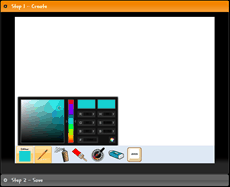
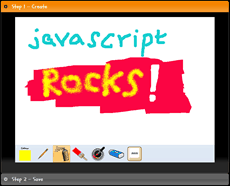
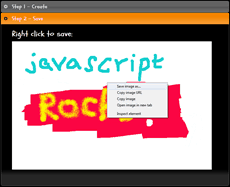
It feels like a little while since I last played around with the <canvas> element, so I spent some time over the weekend and put together a simple painting app using the canvas and here is the end result.
Here’s some screenshots:
Spray Tool
One of the interesting things with this simple painting app is the spray tool, here’s what I did to achieve the effect:
1: var _intervalId, // used to track the current interval ID
2: _center; // the current center to spray
3:
4: function getRandomOffset() {
5: var randomAngle = Math.random() * 360;
6: var randomRadius = Math.random() * radius;
7:
8: return {
9: x: Math.cos(randomAngle) * randomRadius,
10: y: Math.sin(randomAngle) * randomRadius
11: };
12: }
13:
14: this.startDrawing = function (position) {
15: _center = position;
16:
17: // spray once every 200 milliseconds
18: _intervalId = setInterval(this.spray, 10);
19: };
20:
21: this.finishDrawing = function (position) {
22: clearInterval(_intervalId);
23: };
24:
25: this.spray = function () {
26: var centerX = _center.X, centerY = _center.Y, i;
27:
28: for (i = 0; i < density; i++) {
29: var offset = getRandomOffset();
30: var x = centerX + offset.x, y = centerY + offset.y;
31:
32: drawingCxt.fillRect(x, y, 1, 1);
33: }
34: };
The startDrawing function is called when the mouseDown or a subsequent mouseMove event is raised, it in turn sets up an interval event which is triggered every 10 milliseconds and draws one pixel using the currently configured colour within the radius of the mouse pointer.
When the mouseUp event is raised, the interval event handler is unbound.
Saving the Canvas to an Image
One of the cool things you can do with the <canvas> element is the ability to get a data:URL containing a representation of the image as a PNG file, which you can then use as the source for an <img> element so that the user can then save.
The code required to do this is as simple as calling toDataURL() on the <canvas> element and then use the returned value to set the src property on the <img> element.
Demo
You can try out the live demo at http://sketchy.theburningmonk.com or via the shortlink http://lnk.by/fghis.
If you’re interested in the source code, you can get it off github here.
Enjoy!
Whenever you’re ready, here are 3 ways I can help you:
- Production-Ready Serverless: Join 20+ AWS Heroes & Community Builders and 1000+ other students in levelling up your serverless game. This is your one-stop shop for quickly levelling up your serverless skills.
- I help clients launch product ideas, improve their development processes and upskill their teams. If you’d like to work together, then let’s get in touch.
- Join my community on Discord, ask questions, and join the discussion on all things AWS and Serverless.
Love this code….
awesome tutorial. Learned alot. thnxs and can’t wait for the next tutorial
Pingback: Bookmarks & Useful Links | Independent Design Practice
Relly a simple and nice code :)
love your app, but i have a question for you, how can save your image like save image in paint(i meant you must chose your position in the computer before you save)..??
@alice – just click the bar “Step 2 – Save”, this will give you a PNG that you can just right click and save.
Absolutely love this! How would I go about putting in a transparent png outline to be colored (think coloring book) ?
Y si quiero utilizarlo en dispositivos moviles que eventos touch tengo que utilizar??? Saludos