
Yan Cui
I help clients go faster for less using serverless technologies.
HTML5 includes two new ways to store data on the client – local storage and session storage. Local storage has no time limit on how long the data should be kept around, session storage on the other hand (as the name suggests) stores data for only one session.
Traditionally you can store data on the client using cookies, but they are not suited for storing large amounts of data because everything gets sent back to the server on every request and hence slows down the roundtrip and making the user experience less enjoyable.
Using the new storage methods, data is only passed on when asked for and it’s therefore possible to store large amounts of data without slowing down the site. The data is also sandboxed and a website can only access data stored by itself, you can use javascript to set and get data from the relevant storage.
Browser Support Detection
A browser that supports HTML5’s local storage will have a localStorage property on the global window object, you can write your own function to check for the existence of and validity (not null) of the localStorage property, or use a third-party library like Modernizr.
Modernizr is an open source, light weight javascript library that detects support for many HTML5 and CSS3 features, when it runs it creates a global object called Modernizr. To check for local storage support, all you need to do is to check the boolean flag for local storage:
if (Modernizr.localstorage) {
    // browser supports local storage
}
else {
    // browser doesn't support local storage
}
or similarly for session storage:
if (Modernizr.sessionstorage) {
    // browser supports local storage
}
else {
    // browser doesn't support local storage
}
API
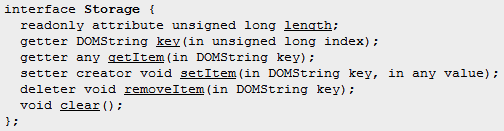
The full API specification for the localStorage and sessionStorage objects can be found here. At the time of writing, this is how the common Storage interface look:
Demo
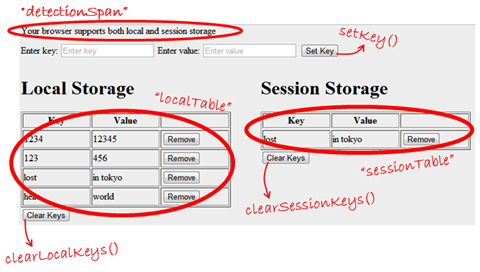
I’ve put together a quick demo here to illustrate how to detect and use the local and session storage to get, set, remove and clear stored items (well, basically, covers each of the available methods on the Storage interface above).
The page itself is simple and crude, just a couple of <div> and most importantly two tables which I use to show all the key value pairs stored in the local and session storage:
Page Load
When the page finishes loading, I call the Modernizr object to find out if the current browser supports local and/or session storage, if not, hide the relevant <div> elements so the tables are not even shown on the page:
$(document).ready(function () {
    // hide the storage divs if browser doesn't support local storage or session storage

    if (Modernizr.localstorage && Modernizr.sessionstorage) {
        $("#detectionSpan").html("Your browser supports both local and session storage");
    } else {
        if (!Modernizr.localstorage) {
            $("#detectionSpan").html("Your browser doesn't support local storage");
            $("#localStorageDiv").hide();
        } else {
            $("#detectionSpan").html("Your browser doesn't support session storage");
            $("#sessionStorageDiv").hide();
        }
    }
    showKeys();
});
Populate Tables
The showKeys() function populates the localTable and sessionTable tables with the keys in the corresponding storage if and only if the storage type is supported by the browser:
// show the keys currently held in the local and session storage
function showKeys() {
    if (Modernizr.localstorage) {
        showStorageKeys("local", "#localTable");
    }
    if (Modernizr.sessionstorage) {
        showStorageKeys("session", "#sessionTable");
    }
}

// show the keys currently held in the specified type of storage in the specified table
function showStorageKeys(type, table) {
    // get the specified type of storage, i.e. local or session
    var storage = window[type + 'Storage'];

    // remove the rows in the specified table before we start
    $(table + " > tbody > tr").remove();

    // loop through the existing keys in the storage and add them to the TBODY element as rows
    for (var i = 0; i < storage.length; i++) {
        var key = storage.key(i);
        var value = storage.getItem(key);
        $(table + " > tbody:last")
            .append("<tr><td>" + key + "</td>" +
                    "<td>" + value + "</td>" +
                    "<td><input type='submit' value='Remove' onclick='removeItem(\"" + type + "\", \"" + key + "\")'/></td></tr>");
    }
}
Introducing the new placeholder attribute
You might have noticed that the two text boxes had placeholder text similar to that familiar search box in Firefox:


This is done using HTML5’s placeholder attribute for the <input> tag:
<input id="keyText" placeholder="Enter key"/>
<input id="valueText" placeholder="Enter value"/>
Nice and easy, eh? ;-)
Setting an item
To add a new key value pair or update the value associated with an existing key, you just have to call the setItem method on the intended storage object:
// adds a new key to both local and session storage
function setKey() {
    var key = $("#keyText").val();
    var value = $("#valueText").val();

    if (Modernizr.localstorage) {
        localStorage.setItem(key, value);
    }
    if (Modernizr.sessionstorage) {
        sessionStorage.setItem(key, value);
    }
    showKeys();
}
Removing an item
Earlier in the showStorageKeys(type, table) function, I added a row to the relevant table for each key value pair in the storage including a button with a handler for the onclick event. The handlers are created with the correct storage type (“local” or “session”) and key for the current row baked in already so that they will call the removeItem(type, key) function with the correct parameters:
// removes an item with the specified key from the specified type of storage
function removeItem(type, key) {
    // get the specified type of storage, i.e. local or session
    var storage = window[type + 'Storage'];
    storage.removeItem(key);
    showKeys();
}
Clearing all items
Finally, the ‘”Clear” buttons underneath the tables call the clearLocalKeys() and clearSessionKeys() function to remove all the key value pairs in the corresponding storage:
function clearLocalKeys() {
    clearKeys("local");
}

function clearSessionKeys() {
    clearKeys("session");
}

// clear all the held keys in the specified type of storage
function clearKeys(type) {
    // get the specified type of storage, i.e. local or session
    var storage = window[type + 'Storage'];

    // clear the keys
    storage.clear();

    showKeys();
}
So that covers all the interesting bits about the demo and all and all pretty straight forward and easy to implement, admittedly I’m a javascript novice so if you feel any of this could be done better please feel free to point out to me!
Whenever you’re ready, here are 3 ways I can help you:
- Production-Ready Serverless: Join 20+ AWS Heroes & Community Builders and 1000+ other students in levelling up your serverless game. This is your one-stop shop for quickly levelling up your serverless skills.
- I help clients launch product ideas, improve their development processes and upskill their teams. If you’d like to work together, then let’s get in touch.
- Join my community on Discord, ask questions, and join the discussion on all things AWS and Serverless.
Pingback: Having fun with HTML5 – contenteditable attribute | theburningmonk.com
Thanks for the great demo. This would be perfect for a project I’m working on.
How can I make it so that:
a) the value is a textareabox, instead of a input box
b) a load button next to the remove button that pushes the value into the textarea?
Thanks in advance
Hi Richard,
I’ve used the local storage in another demo (http://stickynote.theburningmonk.com) where I’ve used textarea instead, the technique is essentially the same with some minor changes, you can read more about it in another post here:
https://theburningmonk.com/2011/01/creating-a-sticky-note-app-with-html5-css3-and-javascript/
Cheeers,
Pingback: Punkchip | Maintaining the user journey with HTML 5 web storage
Great Demo and code.
I have a question about Session Storage. When I used the Storage Demo page on your site, both Local and Session Storage worked properly.
But when I downloaded your demo to my machine, Modernizr said that Session Storage wasn’t enabled on my browser. Is this due to the fact that I’m running these pages offline (i.e., not from a server)?
Can you help me by giving a demo how to have an array of sessionStorage variables
Just improved it adding multidimensional support and depth search
https://gist.github.com/3854049
Tks for the tutorial
Dear Sir,
Warmest Greeting,
As followed is my simple shopping cart, please kindly advise and guide me how to code html 5 session storage to store and displaying the cart as request;
Thank you with Best regards
Richard Chung
__________________________________________________________________________________
Please Help and re-coding of my request;
1. how to insert code and sessionStorage or localstorage statement at the array items including how to code setItem() and getitem() for saving and displaying and for cart calculation purpose.
var items = new Array(); //create array to store items
items[0] = new Array( “Computer”, 1500.00, 8 );
items[1] = new Array( “Printer”, 500.00, 4.5 );
items[2] = new Array( “Sofware”, 460.00, 0.0);
2. How to saveitem() and getitem() of this.quantities[i] for further calculation
function Cart (holder, items) {
this.holder = holder;
this.items = items;
this.quantities = Array();
for (var i=0; i 0)
this.quantities[index]–;
5 how to use Table to display the Cart result as follow;
elm.innerHTML = “”+this.items[i][0]+”Quantity: “+this.quantities[i]+” “+this.total+” “+” “+this.grandtotal+” “+this.weight+” Total Weight “+this.totalweight+” “;
6. Possible the customer information order form can be linkage with or inserting in the same sessionstorage coding page or other separated page. Please provide your coding example.
======================================================================
The following my shopping cart code for your reference
var cart;
var items = new Array(); //create array to store items
items[0] = new Array( “Computer”, 1500.00, 8 );
items[1] = new Array( “Printer”, 500.00, 4.5 );
items[2] = new Array( “Sofware”, 460.00, 0.0);
function addToCart(itemIndex) { //add to cart function
cart.add(itemIndex);
cart.display();
}
function removeItem(itemIndex) { //remove item from cart
cart.remove(itemIndex);
cart.display();
alert(items[itemIndex] + ” has been removed from your cart!”);
}
function Cart (holder, items) {
this.holder = holder;
this.items = items;
this.quantities = Array();
for (var i=0; i 0)
this.quantities[index]–;
}
this.calculateItemTotal = function( ) {
var itemtotal ;
for ( i = 0; I < this.quantities.length ; I ++) {
itemtotal = items[i][1] * this.quantities [i];
}
return itemtotal;
}
this.display = function () {
this.holder.innerHTML = ""; this.grandtotal = 0 ; this.totalweight = 0 ;
for (var i=0; i 0) {
this.total = ( this.items[i][1] * this.quantities[i] );
this.weight = ( this.items[i][2] * this.quantities[i] );
this.grandtotal = ( this.grandtotal + this.total );
this.totalweight = (this.totalweight + this.weight );
var elm = document.createElement(‘div’);
elm.innerHTML = “”+this.items[i][0]+”Quantity: “+this.quantities[i]+” “+this.total+” “+” “+this.grandtotal+” “+this.weight+” Total Weight “+this.totalweight+” “;
this.holder.insertBefore(elm, null);
this.holder.insertBefore(elm, null);
};
}
}
}
Shopping Cart:
Add Cpmputer
Delete Computer
Add Printer
Delete Printer
Add Software
Delete Sofware
cart = new Cart(document.getElementById(‘right’), items);